Intune Status Health Check with NinjaOne and PowerShell

A device can look healthy in NinjaOne and still have broken Intune enrollment state in the background.
This script-driven health check validates key Intune enrollment indicators and writes the results to NinjaOne custom fields so you can alert on drift quickly.
Creating Fields
- Role Custom Fields are custom fields that are specific to a device role.
- Global Custom Fields are custom fields that are applicable to all devices and/or to a location and/or organisation
When you create your custom field you need to make sure that you set the Scripts permission to ensure that you can read or write to the field from your scripts - as appropriate for the script you're using.
You can run this script without custom fields, but fields are what make it operationally useful in NinjaOne.
| Field Label | Field Name | Field Type | Description |
|---|---|---|---|
| Intune Enrollment Status | intuneEnrollmentStatus | Checkbox | true when enrollment checks pass or partial-pass, false when not enrolled. |
| Intune Tenant ID | intuneTenantId | Text | Tenant ID discovered by dsregcmd /status. |
| Intune Last Sync Attempt | intuneLastSyncAttempt | Date/Time | Unix timestamp converted by NinjaOne as last known sync attempt. |
| Intune Last Sync Status | intuneLastSyncStatus | Text | OK, Error, or NoData based on latest DM-EDP sync result event. |

The Script
This script was updated after being published, if you're using it please compare the version you have with the version available here.
This script was last updated on 2026/05/31.
loading...
Run this script as SYSTEM in NinjaOne. It validates LocalMachine certificate/registry state and the IntuneManagementExtension service.
What The Script Validates
The script validates multiple indicators before deciding status:
- Azure AD join state (
AzureADJoined = YES) - Microsoft MDM URL presence (
MDMUrl) - Tenant ID presence
- Intune MDM device certificate
- Intune enrollment GUID from EnterpriseMgmt scheduled task path
- Primary enrollment GUID selection when multiple registrations exist
- Required MDM enrollment-related registry keys
- Intune Management Extension service running
- Last Intune sync event and result status
Script Variables (Ninja Script Variables)
Expose these as NinjaOne script variables if you want field names to be configurable per environment:
The script now reads Ninja script variables from environment variables with the same names as the parameters.
| Variable | Type | Default |
|---|---|---|
EnrollmentStatusCustomField | String | intuneEnrollmentStatus |
LogTenantId | Checkbox | true |
TenantIdCustomField | String | intuneTenantId |
LogLastSyncAttempt | Checkbox | true |
LastSyncAttemptCustomField | String | intuneLastSyncAttempt |
LogLastSyncStatus | Checkbox | true |
SyncStatusCustomField | String | intuneLastSyncStatus |
SyncResultLogNames | Text (CSV) | Microsoft-Windows-DeviceManagement-Enterprise-Diagnostics-Provider/Sync,Microsoft-Windows-DeviceManagement-Enterprise-Diagnostics-Provider/Admin |
SyncResultEventId | Integer | 209 |
Example SyncResultLogNames values:
Microsoft-Windows-DeviceManagement-Enterprise-Diagnostics-Provider/SyncMicrosoft-Windows-DeviceManagement-Enterprise-Diagnostics-Provider/Sync,Microsoft-Windows-DeviceManagement-Enterprise-Diagnostics-Provider/Admin
Suggested NinjaOne Monitor Conditions
A practical first monitor set:
intuneEnrollmentStatus != trueintuneLastSyncStatus != OKintuneLastSyncAttemptolder than your policy threshold (for example, 24 hours)
Use separate alert severities for enrollment failure vs stale sync to avoid noise.
Suggested Severity Tiers
- Critical:
intuneEnrollmentStatus != true - Warning:
intuneEnrollmentStatus = trueandintuneLastSyncStatus = Error - Warning/Info:
intuneEnrollmentStatus = trueandintuneLastSyncStatus = NoDataandintuneLastSyncAttemptis older than threshold
intuneEnrollmentStatus = true means enrollment checks passed enough to classify the device as enrolled. Use intuneLastSyncStatus and intuneLastSyncAttempt to detect degraded or stale sync health.
Starter Variable Profile
If you want a known-good baseline, start with:
LogTenantId = trueLogLastSyncAttempt = trueLogLastSyncStatus = trueSyncResultLogNames = Microsoft-Windows-DeviceManagement-Enterprise-Diagnostics-Provider/Sync,Microsoft-Windows-DeviceManagement-Enterprise-Diagnostics-Provider/AdminSyncResultEventId = 209
Example Results
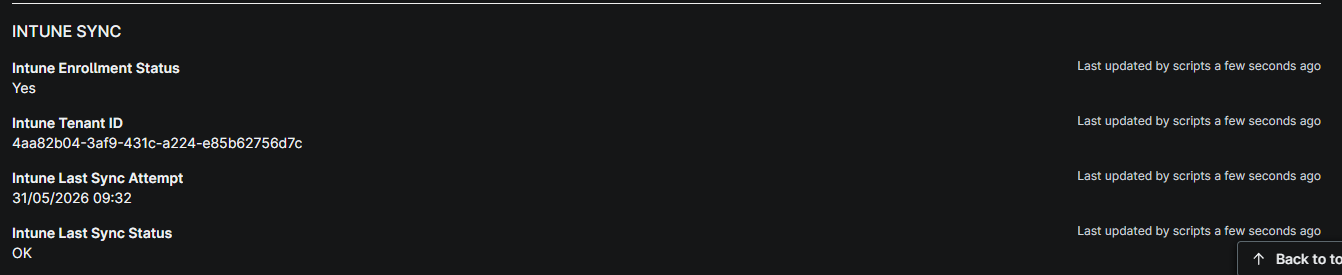
The script reports status cleanly to NinjaOne fields, including enrollment state, tenant ID, sync status, and last sync timestamp.
Deployment Pattern
A simple rollout approach:
- Run script daily on all Intune-managed Windows endpoints.
- Confirm field population on a pilot device group.
- Enable monitors after two to three successful daily runs.
- Add dashboards grouped by tenant/site and exception type.
Troubleshooting Notes
When failures occur, the script output usually points directly to the failing check:
Device is not Azure AD JoinedDevice does not have a Microsoft MDM URL- missing enrollment GUID or EnterpriseMgmt task
- missing enrollment registry branch for detected GUID
- IntuneManagementExtension service missing/stopped
NoData can be normal initially on newly enrolled devices until a matching sync result event exists in the selected channel.
intuneLastSyncAttempt is written as an unsigned Unix timestamp (seconds since epoch), which matches NinjaOne Date/Time field validation.
Symptom Quick Map
| Symptom | Likely Cause / Next Check |
|---|---|
intuneEnrollmentStatus = false | Device likely not fully enrolled; validate dsregcmd /status, MDM URL, and enrollment task path. |
intuneEnrollmentStatus = true + intuneLastSyncStatus = Error | Enrollment exists but sync event indicates a failing operation; inspect latest 209 event message in selected log. |
intuneEnrollmentStatus = true + intuneLastSyncStatus = NoData | No matching event yet or wrong log/event ID; verify SyncResultLogNames and SyncResultEventId. |
| Last sync date not updating | Confirm LogLastSyncAttempt = true and Date/Time custom field type for intuneLastSyncAttempt. |